
Clash for Windows Download & Installation Guide
Clash for Windows (CFW) is a graphical network proxy client based on the Clash core. It is not a proxy service provider, but a powerful management tool that allows users to intelligently route and manage all network traffic on their device based on highly customizable rules. Despite the name "Windows," it is actually a cross-platform application, supporting macOS and Linux as well. The author stopped updating and deleted the GitHub repository at the end of 2023. Although old versions are still available, there is no official maintenance or updates.
Clash for Windows Download
| Platform | Version | Proxy Accelerated | Direct GitHub |
|---|---|---|---|
| Windows | 0.20.39 | Download | Download |
| MacOS | 0.20.39 | Download | Download |
Note:
Proxy Accelerated: Use a jump proxy to speed up access to GitHub. If direct GitHub is too slow, try Proxy Accelerated download.
Installation Steps
1. Install the Application
If you are using an Apple Silicon Mac, it is recommended to use the native macOS client ClashX
If you are on Windows, there are more client options. If installation fails, try other clients such as Clash Verge, FlClash, or Hiddify, all of which are excellent open-source clients. We also provide detailed usage guides for them.
2. Get a Subscription
⚠️ Important:
Please note that Clash for Windows is a proxy tool, not a proxy service provider. Installing it alone does not enable internet access. You need a subscription (service provider) to get started. If you are unsure how to choose a provider, read How to Choose the Right Provider↗.
If you don't have a subscription yet, click here to register and get 1GB free traffic↗
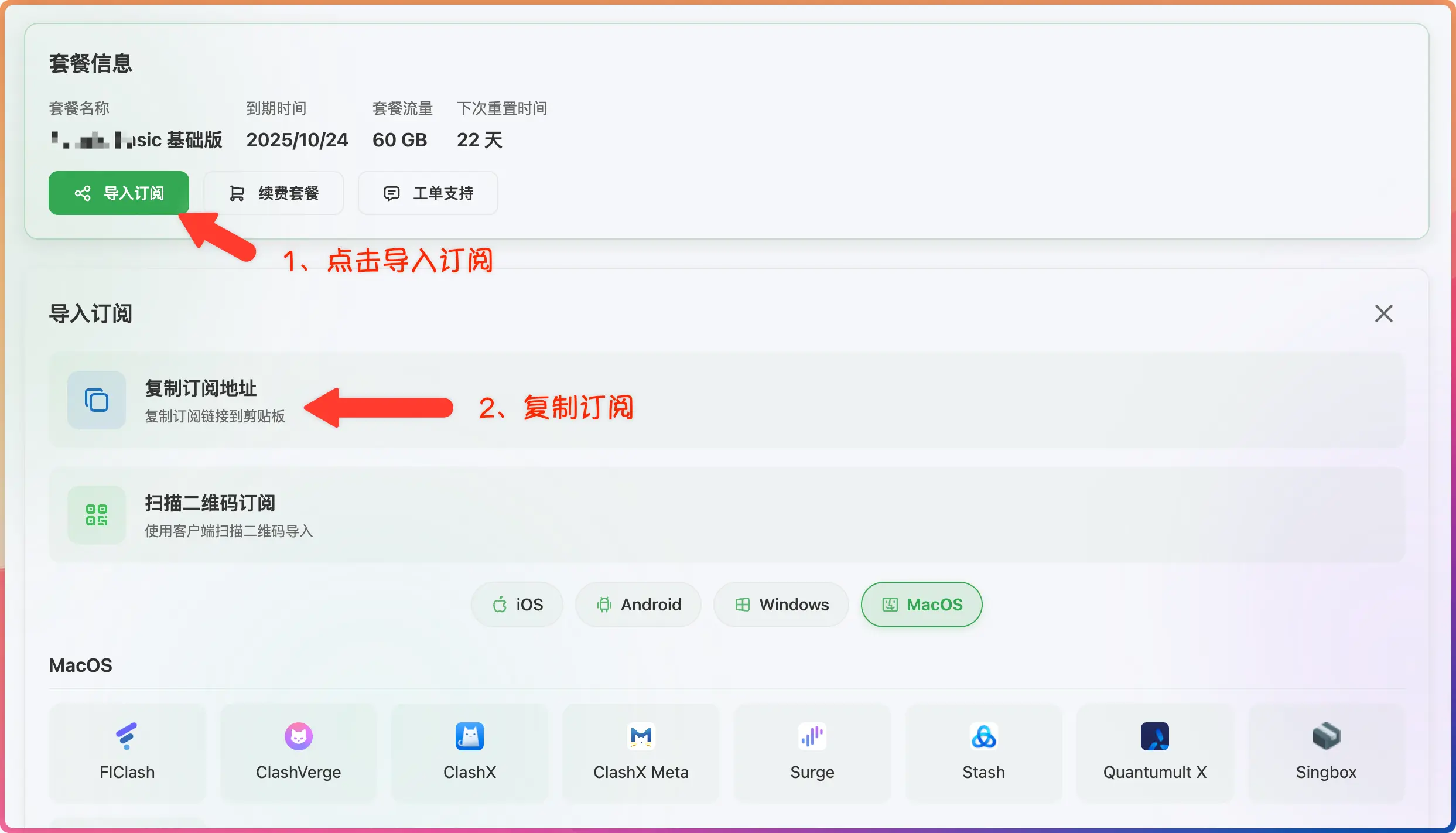
- Log in to the provider's official website
- Click to import subscription
- Click to copy subscription
3. Import Subscription
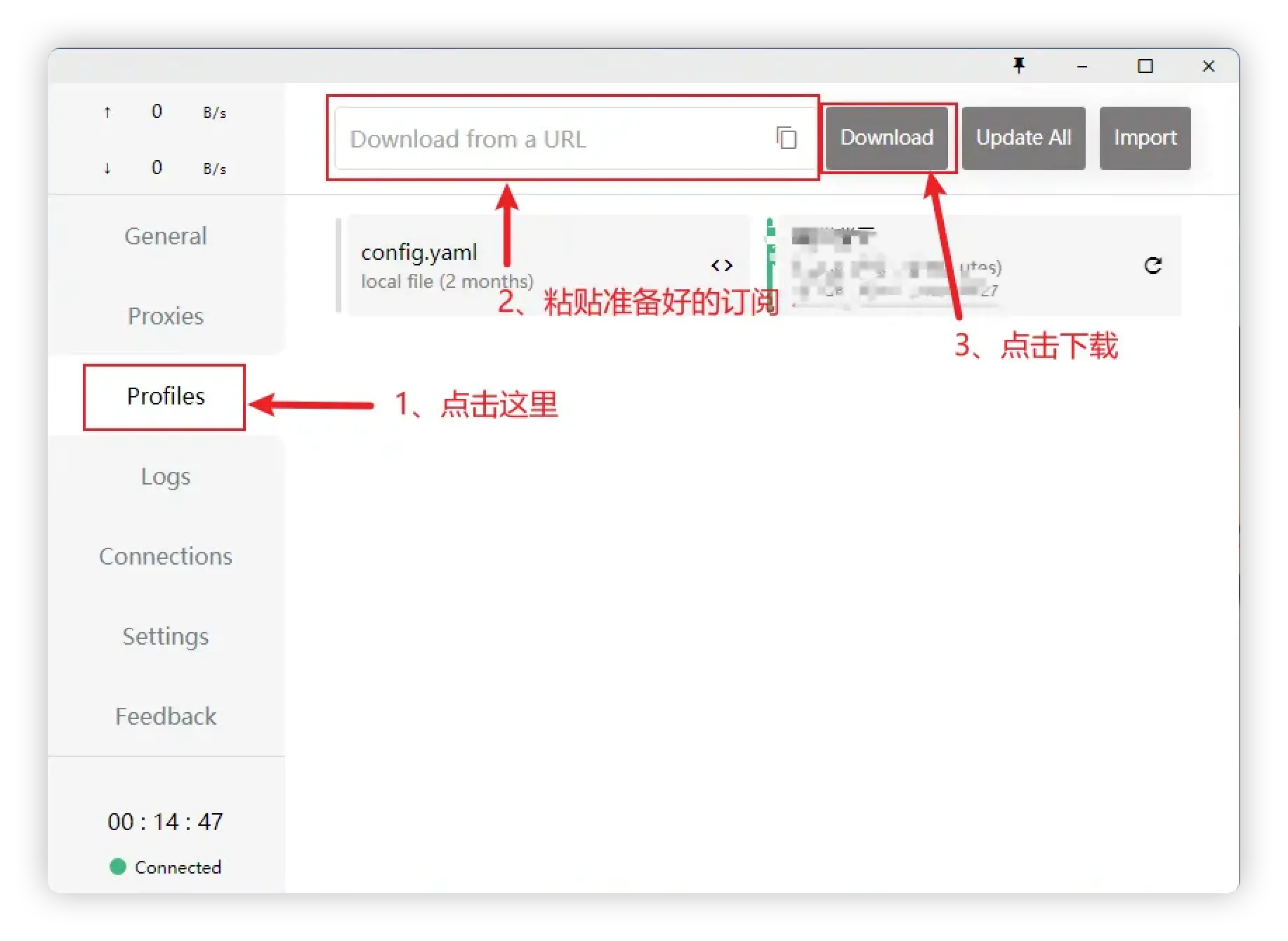
- Paste the subscription address
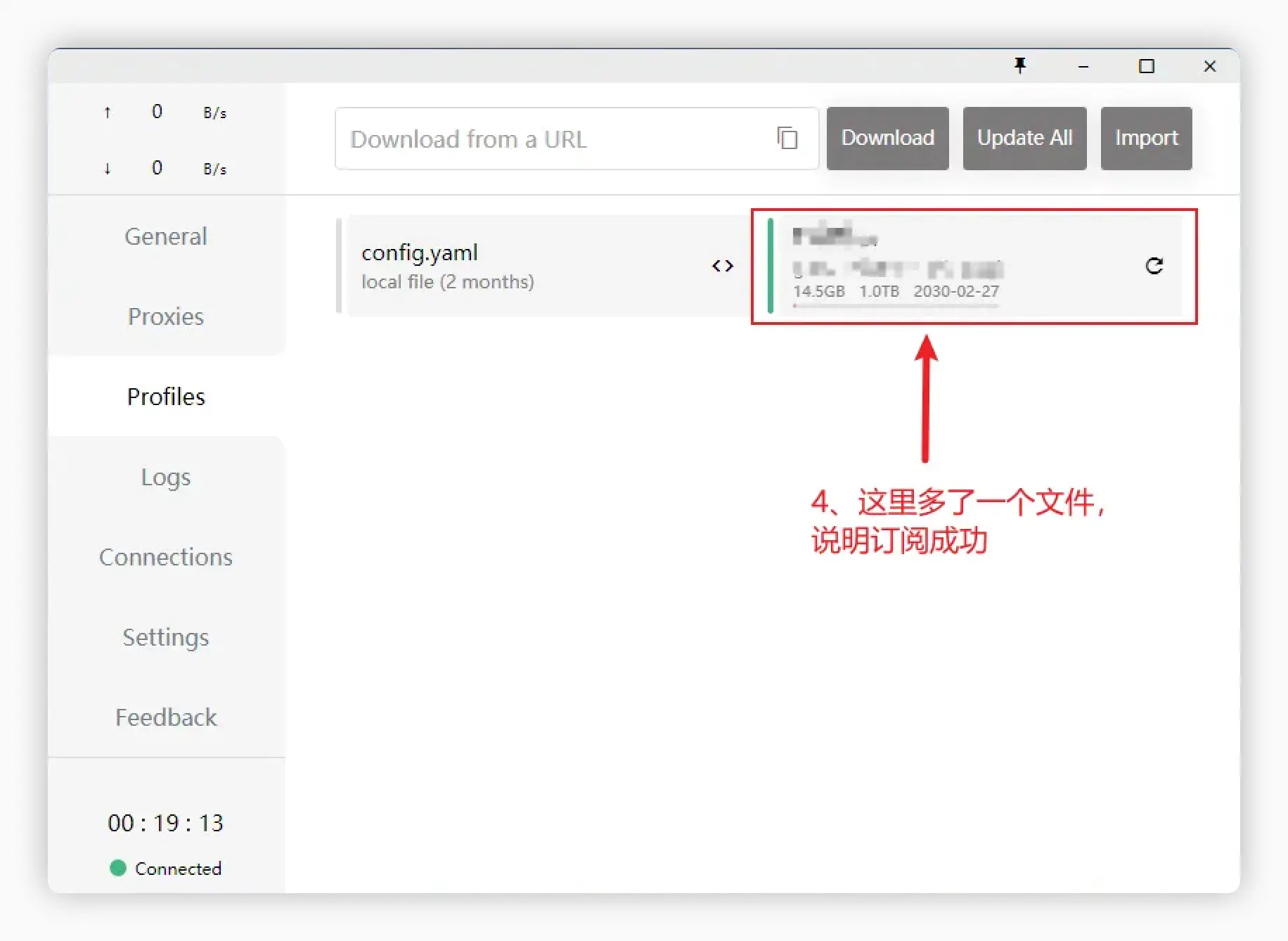
- Click to download subscription
4. Start Proxy
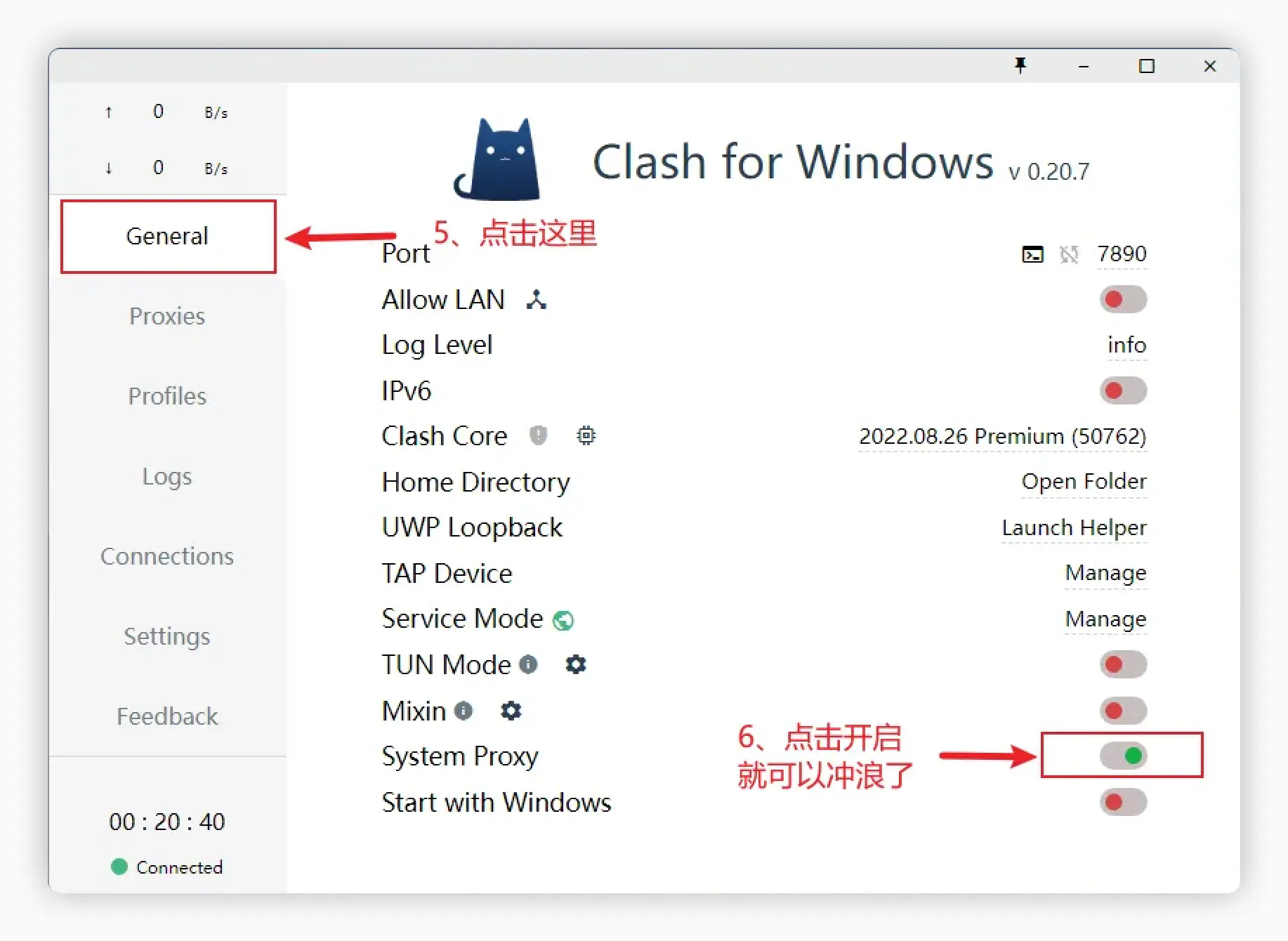
- Click to start the proxy
If you have tried many tutorials and still cannot get online, the recommendation is to switch to other open-source clients. After all, your need is to access the internet, not to struggle with it. Other clients are also very easy to use, such as Clash Verge, FlClash, Hiddify, etc.
Advanced Guide (Optional)
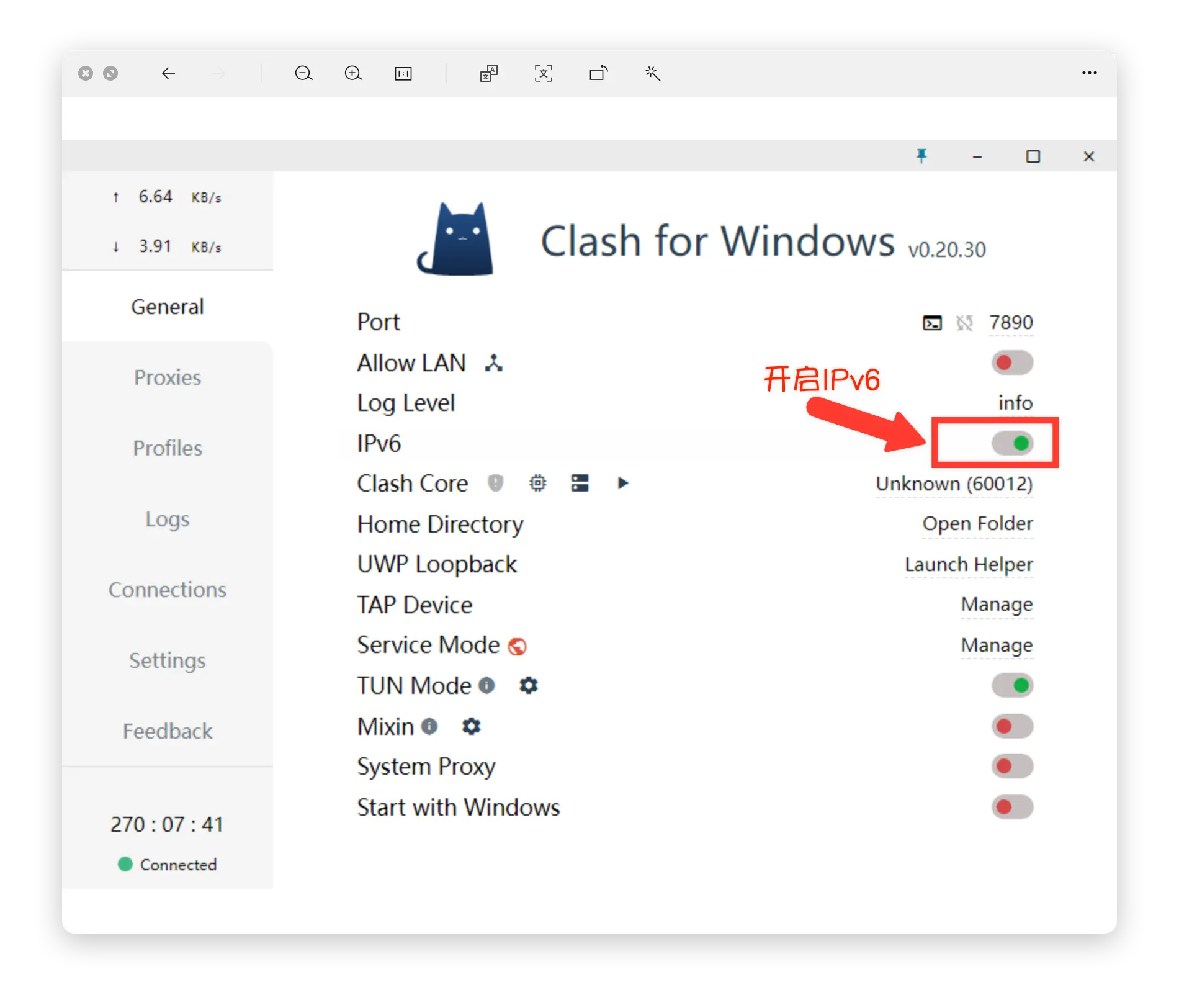
Enable IPv6
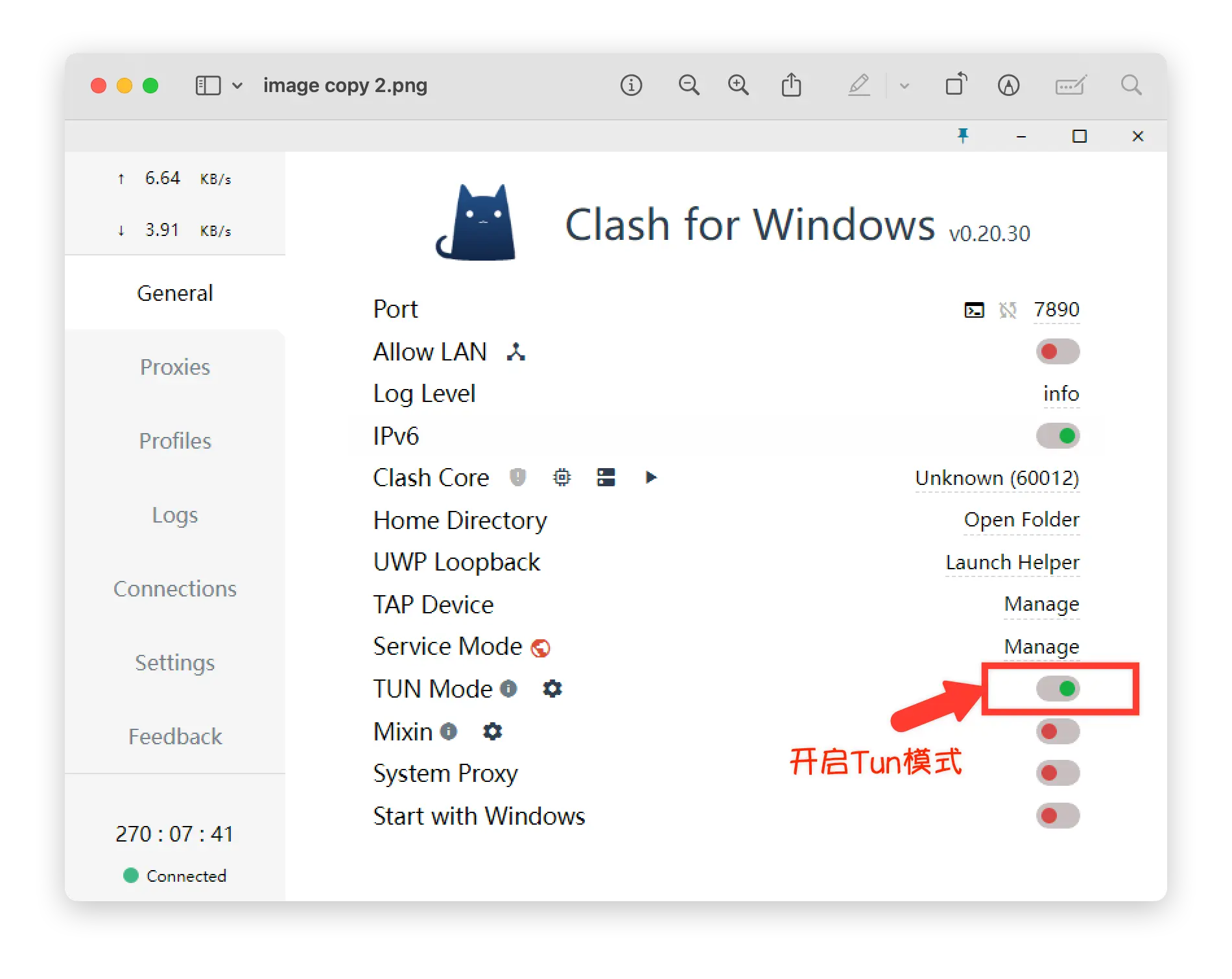
Enable TUN Mode
Node Availability Test
Testing node latency and availability helps you choose the fastest and most stable nodes:
- Manual Test: Click the lightning icon next to proxy groups to test all nodes
- Auto-select: Use
URL TestorFallbackgroups for automatic node selection - Health Check: Enable periodic testing in Settings to automatically switch to healthy nodes
Best Practices:
- Test nodes during peak hours (8-10 PM) for real-world performance
- Prioritize nodes with <100ms latency for daily use
- Keep 2-3 backup nodes from different regions
Proxy Modes Explained
Understanding different proxy modes helps optimize your experience:
Global Mode - All traffic goes through proxy
- ✅ Pros: Simple, reliable, good for troubleshooting
- ❌ Cons: Higher latency for domestic sites, wastes bandwidth
- 💡 Use when: Accessing blocked services, debugging connection issues
Rule Mode (Recommended) - Smart routing based on rules
- ✅ Pros: Best balance, domestic sites direct, foreign sites proxied
- ❌ Cons: Requires properly configured rules
- 💡 Use when: Daily browsing, streaming, mixed usage
- 📖 Learn more: What is Rule-Based Routing?
Direct Mode - No proxy, direct connection
- ✅ Pros: Fastest for domestic sites
- ❌ Cons: Cannot access blocked content
- 💡 Use when: Online banking, LAN access, temporarily disabling proxy
Subscription Management Tips
Auto-update Settings:
- Enable auto-update to get latest nodes and rules automatically
- Recommended interval: 24 hours
- Backup your subscription links securely
Multiple Subscriptions:
- Use different providers for failover
- Combine specialized subscriptions (streaming, gaming, general)
- Organize with custom names and grouping
Troubleshooting Subscription Issues: If subscription import fails, check:
- Subscription link validity (try opening in browser)
- Network connectivity and firewall settings
- Provider service status
- Detailed troubleshooting guide
Performance Optimization
Speed Up Your Connection
1. Choose the Right Node:
- Select nodes geographically closer to target services
- Example: Japan/Korea nodes for Asian streaming, US nodes for Netflix
- How to select the best nodes?
2. Enable TUN Mode:
- Captures all traffic, including apps that don't support system proxy
- Better for gaming and P2P applications
- Learn about TUN mode
3. Optimize DNS Settings:
- Use fast public DNS: Cloudflare (1.1.1.1), Google (8.8.8.8)
- Enable DNS over HTTPS (DoH) to prevent DNS pollution
- Understanding DNS pollution
4. Adjust Connection Settings:
- Increase connection pool size for better concurrency
- Enable TCP Fast Open if supported
- Configure appropriate timeouts
Battery & Resource Optimization
For laptop users:
- Disable auto-update when on battery
- Reduce health check frequency
- Use simpler proxy groups to save CPU
Security & Privacy
Best Practices
1. Use Trusted Subscriptions Only:
- Avoid free subscriptions (high risk of data logging)
- Research provider reputation before purchase
- How to choose a reliable provider
2. Verify Provider Security:
- Check for no-log policy
- Prefer providers with encrypted protocols (Trojan, VMess)
- Avoid providers asking for excessive personal information
3. Regular Updates:
- Keep Clash for Windows updated for security patches
- Update subscription regularly for latest server configurations
4. Network Security:
- Don't use proxy on untrusted public Wi-Fi without additional VPN
- Be cautious with sensitive operations (banking) over proxy
- Understand your proxy protocols
Common Issues
Node Protocol Compatibility Issues
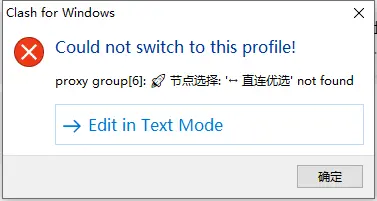 If you get an error when downloading a subscription, it is because Clash for Windows does not support the latest protocols. Please try Clash Verge↗ or other
 Windows clients for a better experience.
macOS Installation Fails
Clash for Windows only supports Intel chips. If you are using an Apple Silicon Mac, please use other clients such as the native ClashX↗ for a better experience.
What to do if Clash subscription fetch always fails?
Proxy enabled but still can't access the internet?
📚 Related Tutorials & Resources
Alternative Clients:
- Clash Verge - Modern, actively maintained, supports latest protocols
- FlClash - Lightweight, minimal resource usage
- Hiddify - Universal client for all platforms
- View all clients
Quick Start Guides:
- Complete Clash Introduction - Understand proxy concepts and terminology
- Installation Tutorial - Step-by-step setup guide
- Subscription Import - How to add and manage subscriptions
- Advanced Settings - TUN mode, IPv6, and optimization
Common Questions:
- Frequently Asked Questions - Troubleshooting and solutions
- Choosing a Subscription Service - Provider comparison and recommendations
- Global vs Rule vs Direct Modes
Technical Deep Dives:
💡 Recommended Reading
If you're new to Clash, start with What is Clash? to understand the core concepts, then follow our Quick Start Guide for hands-on setup.
Why Clash for Windows is No Longer Recommended
While Clash for Windows was once the most popular choice, it has significant limitations now:
Major Issues:
- ❌ No longer maintained - Last update in 2023, no security patches
- ❌ Outdated protocol support - Cannot handle modern proxy protocols (VLESS, Hysteria2, etc.)
- ❌ Mac compatibility issues - Doesn't work on Apple Silicon Macs
- ❌ Security concerns - Unpatched vulnerabilities in old Clash core
Better Alternatives:
- Clash Verge - Actively maintained, modern UI, full protocol support
- FlClash - Lightweight, open-source, cross-platform
- Hiddify - Universal solution for all devices
Migration Guide:
- Export your current subscriptions
- Install a modern alternative (recommended: Clash Verge)
- Import subscriptions and profiles
- Configure settings (TUN mode, proxy groups, rules)
- Test and verify connectivity
⚠️ Important Notice
Due to discontinued development, we recommend migrating to actively maintained alternatives for better security, stability, and protocol support. See our client comparison for detailed recommendations.