
Hiddify Download & Installation Guide
Hiddify is a cross-platform graphical proxy client supporting Windows, macOS, iOS, Android, and Linux. Based on a modern proxy core, it provides subscription management, rule-based routing, proxy groups, and system proxy/TUN features, suitable for users who want an all-in-one experience.
Hiddify Download
| Platform | Version | Proxy Accelerated | Direct GitHub |
|---|---|---|---|
| Windows | 2.5.7 | Download | Download |
| macOS | 2.5.7 | Download | Download |
| Android | 2.5.7 | Download | Download |
| iOS | 2.5.7 | Download | Download |
| Linux | 2.5.7 | Download | Download |
Note:
Proxy Accelerated: Use a jump proxy to speed up access to GitHub. If direct GitHub is too slow, try Proxy Accelerated download.
Installation Steps
1. Install the Application
- If your CPU architecture is not listed above, check the official repository↗ for more options.
- If the system blocks installation (unknown developer/driver permissions, etc.), follow the prompts to allow or release in Security & Privacy settings.
2. Get a Subscription
⚠️ Important:
Please note that Hiddify is a proxy tool, not a proxy service provider. Installing it alone does not enable internet access. You need a subscription (service provider) to get started. If you are unsure how to choose a provider, read How to Choose the Right Provider↗.
If you don't have a subscription yet, click here to register and get 1GB free traffic↗
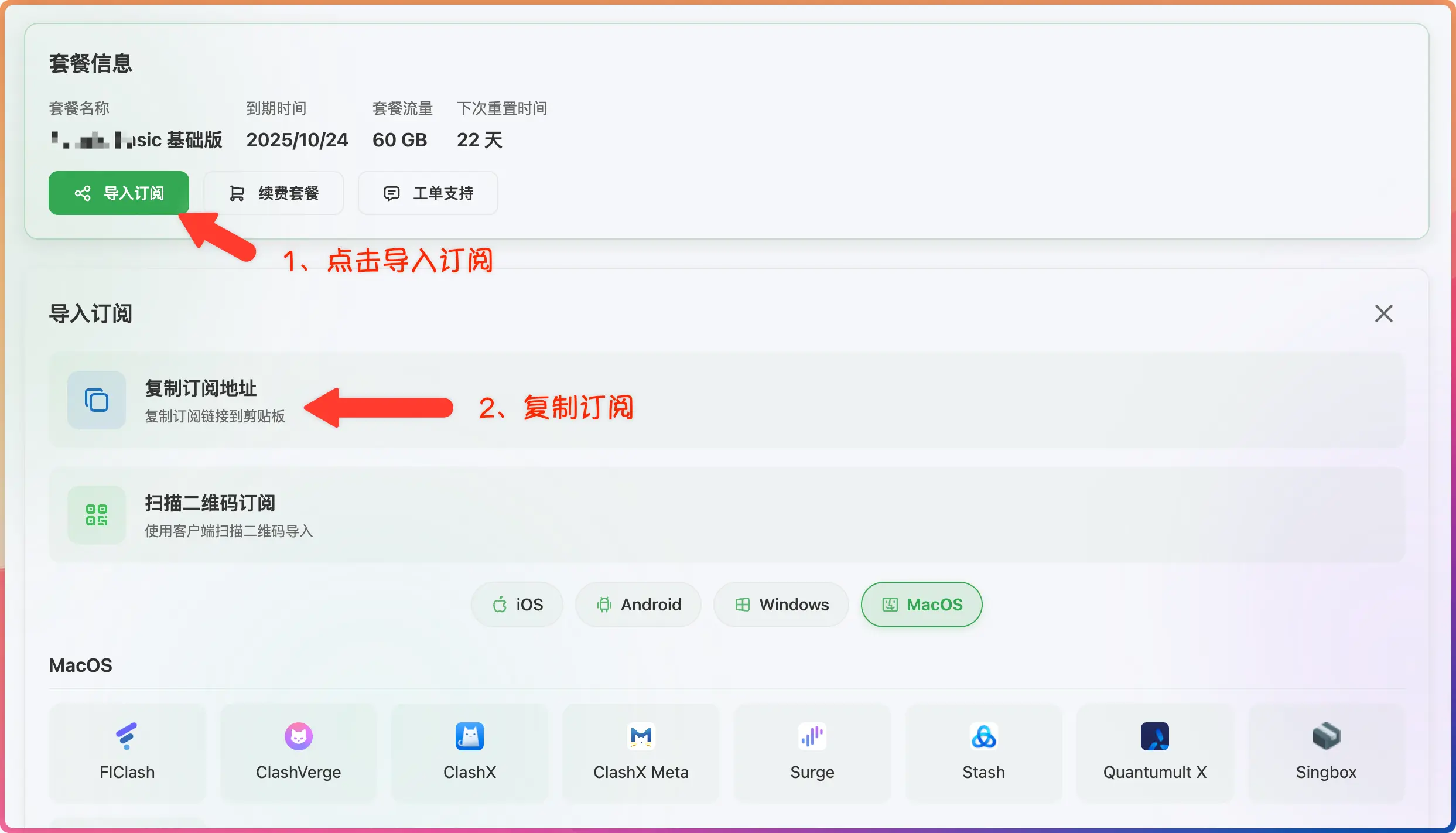
- Log in to the provider's official website
- Click to import subscription
- Click to copy subscription
3. Import Subscription
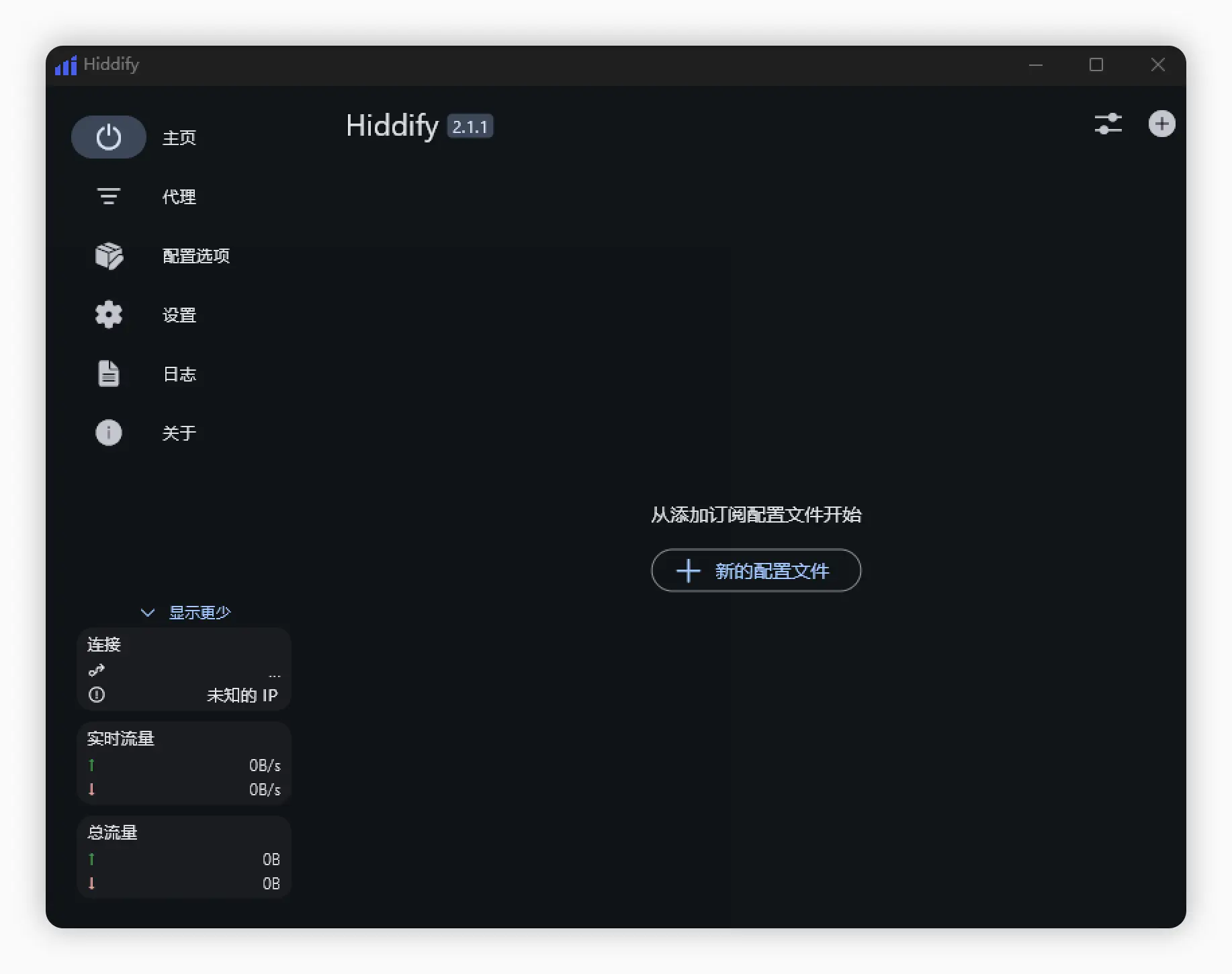
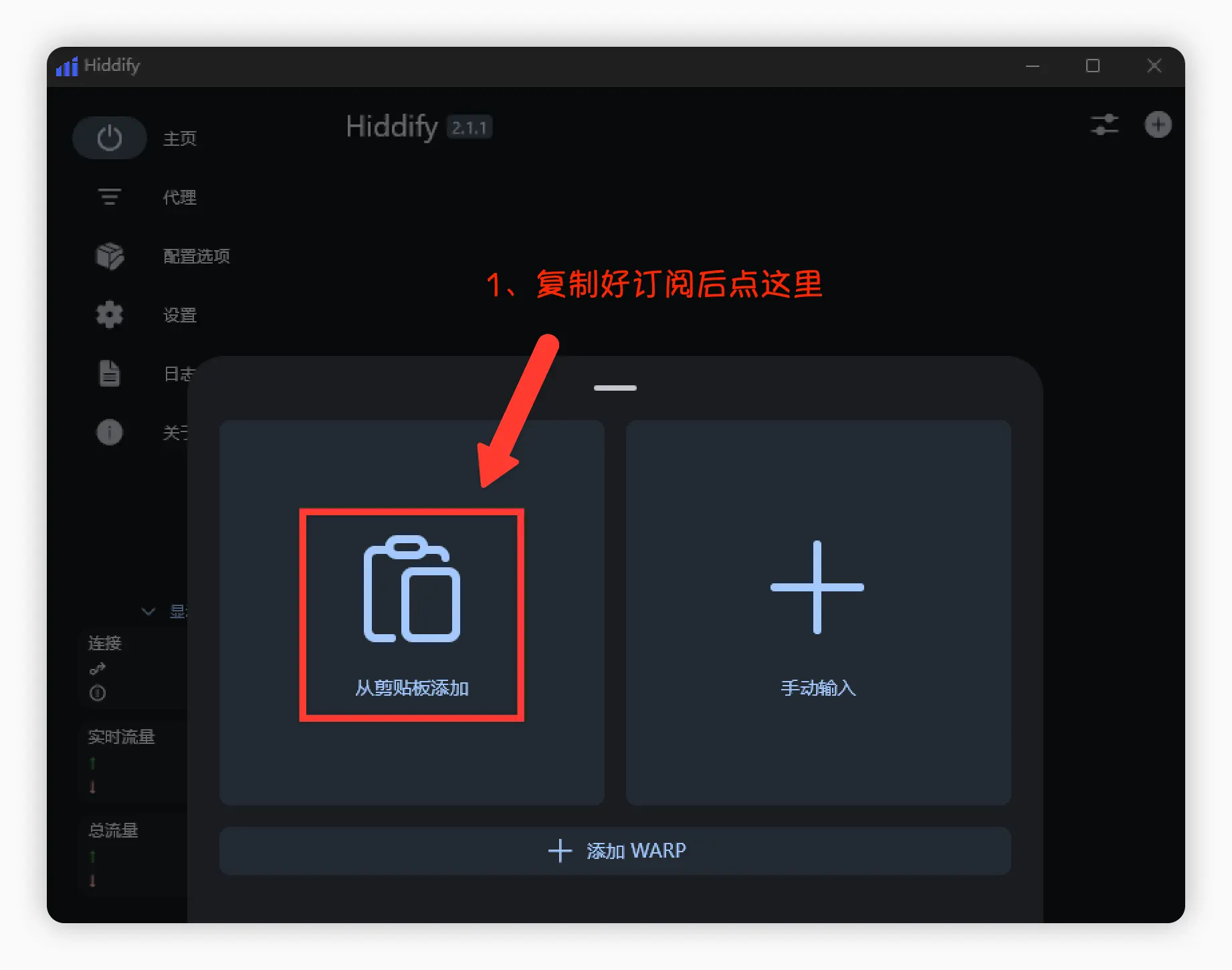
- Open Hiddify and go to the subscription/config management page
- Paste the subscription address
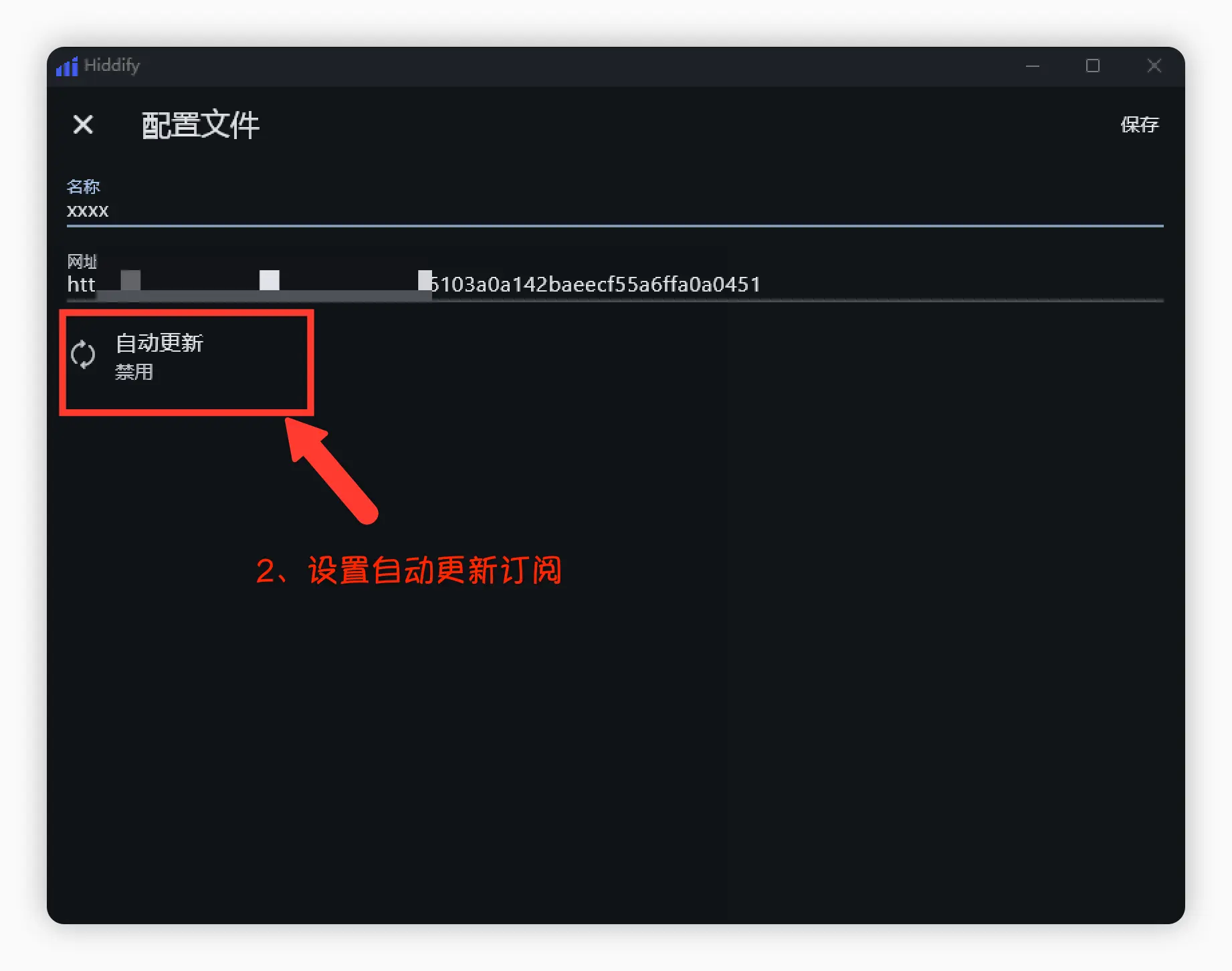
- Set up auto-update
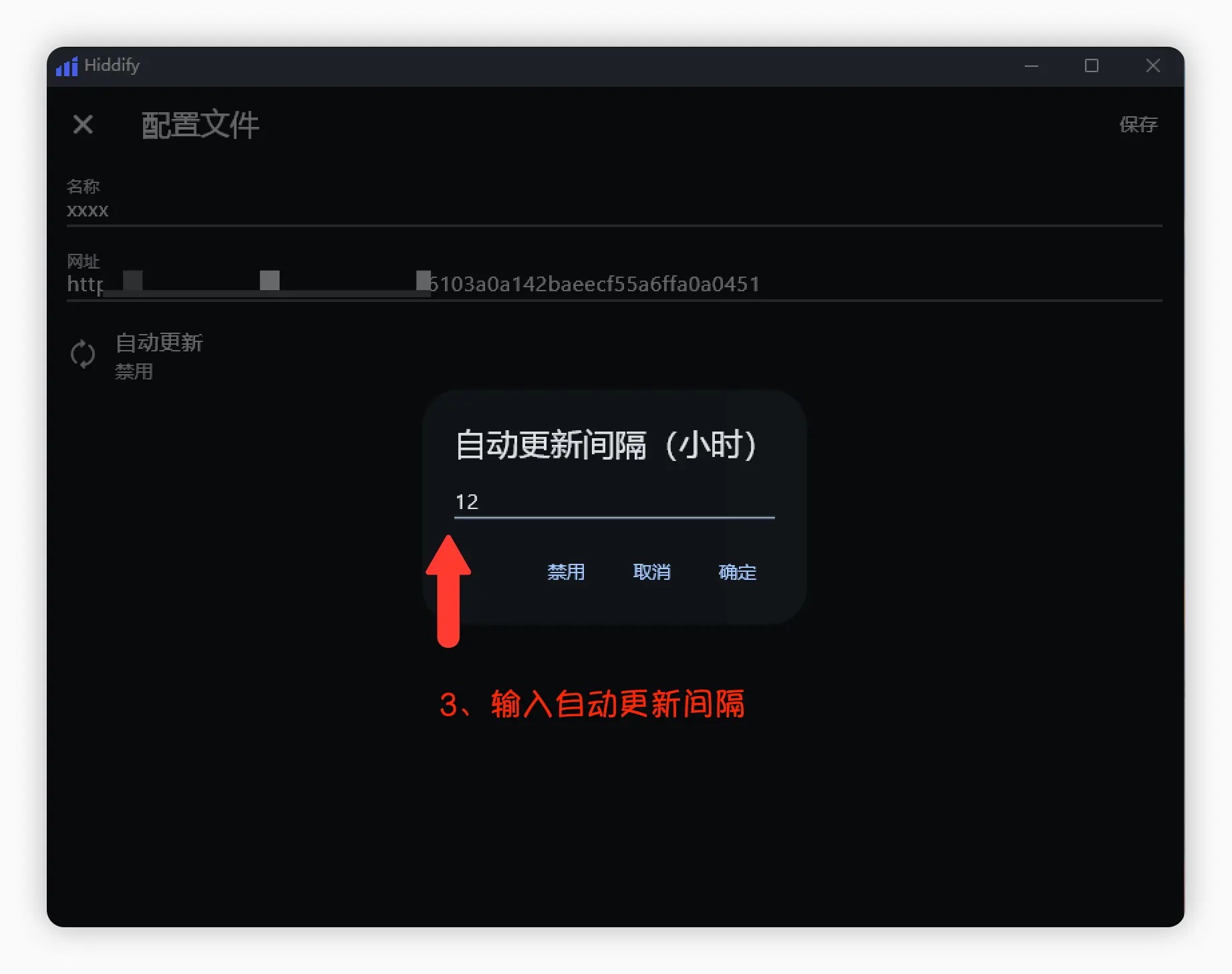
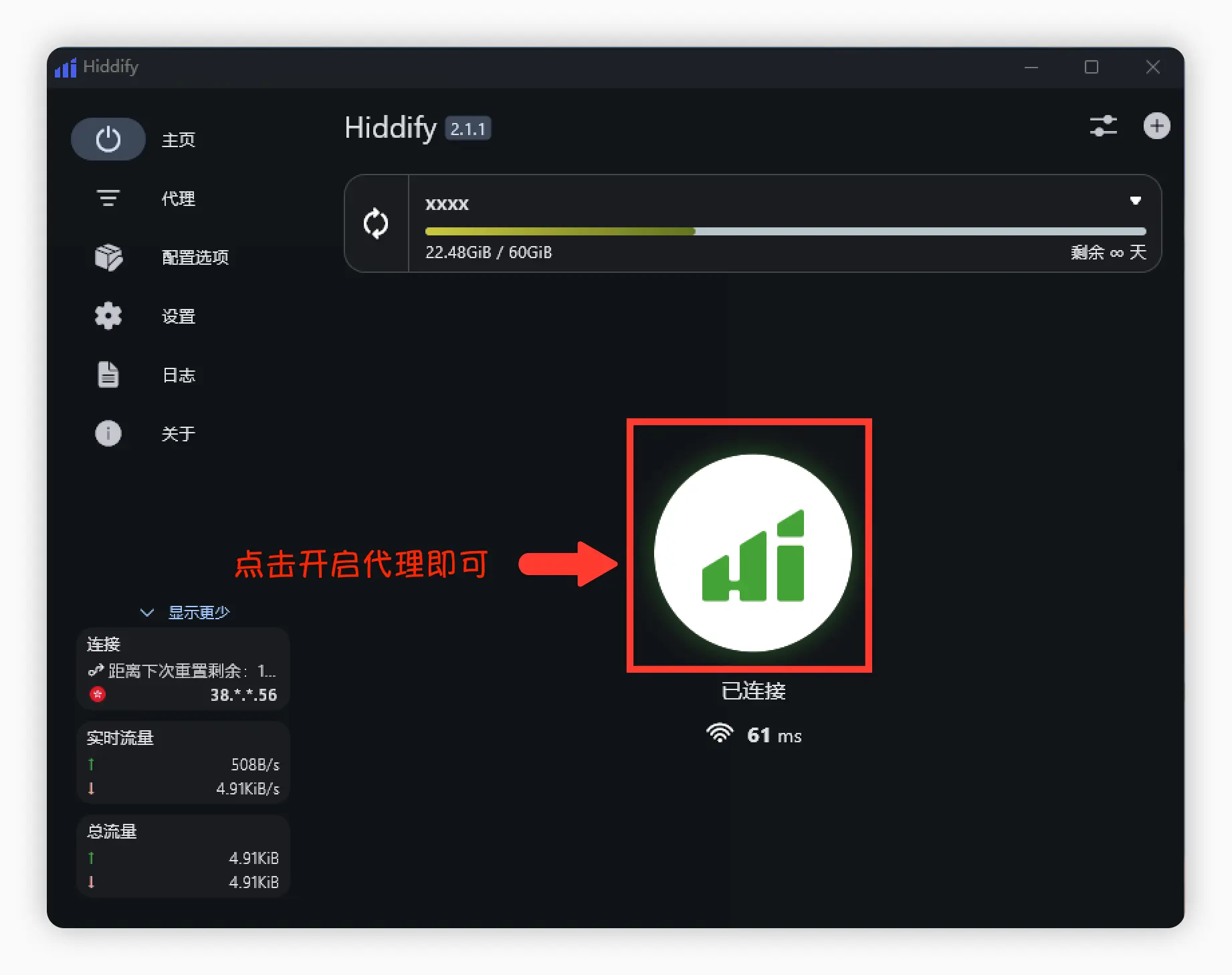
4. Start Proxy
- Enable proxy on the main interface
Advanced Guide
Enable TUN Mode
It is recommended to read "What is TUN mode?" before enabling.
- Usually enabled in Hiddify under "Settings → Network/Advanced/Core".
- If prompted to install/grant permissions, follow the instructions.
- If you encounter driver/port conflicts, try restarting or closing other proxy tools and retry.
Enable IPv6
See "How to enable IPv6". If you encounter abnormal resolution or connectivity issues after enabling, temporarily disable IPv6 or use it only for specific rules as needed.
Common Issues
What to do if Clash subscription fetch always fails?
Proxy enabled but still can't access the internet?
📚 Related Tutorials & Resources
Cross-Platform Alternative Clients:
- Clash Verge - Modern cross-platform client with rich features
- FlClash - Flutter-based cross-platform client, lightweight and efficient
- Clash for Windows - Classic Windows client (discontinued)
- ClashX - macOS native client
- Shadowrocket - Preferred iOS client
- View All Clients
Quick Start Guide:
- Complete Clash Introduction - Understand proxy concepts and terminology
- Installation Tutorial - Step-by-step setup guide
- Subscription Import - Subscription management explained
- Advanced Settings - TUN mode, rule configuration
- Node Selection - How to choose the fastest node
Advanced Configuration:
- What is TUN Mode? - Virtual network adapter explained
- How to Enable IPv6 - IPv6 configuration guide
- Rule-Based Routing Explained - Custom routing rules
Common Questions:
- FAQ Summary - Troubleshooting & solutions
- Provider Recommendations - Subscription service comparison
- Global/Rule/Direct Mode Differences
💡 Hiddify Features
- ✅ Full Platform Support - Covers Windows/macOS/iOS/Android/Linux
- ✅ Complete Protocol Support - Supports mainstream proxy protocols
- ✅ TUN Mode - System-level global proxy
- ✅ Open Source & Free - GitHub open source, community maintained